
How to Merge PDFs for Free Without Uploading The
Quick answer: To merge PDFs without uploading them, use a browser-based tool like the BookmarkBuild Merge PDF tool. Open the page, add your PDF files, set the order and click download. The merging happens inside your browser using JavaScript, so your files never go to a server. It is free, needs no signup and adds no watermark.
Merging PDFs sounds simple, and it is. The problem is that most “free” PDF mergers ask you to upload your files first. That means your bank statements, ID scans, contracts or medical reports sit on someone else’s server, even if only for a while. In this guide you will learn how to combine PDF files privately, on any device, and how to check for yourself that a tool really does not upload anything.
Why Uploading PDFs Is a Privacy Risk
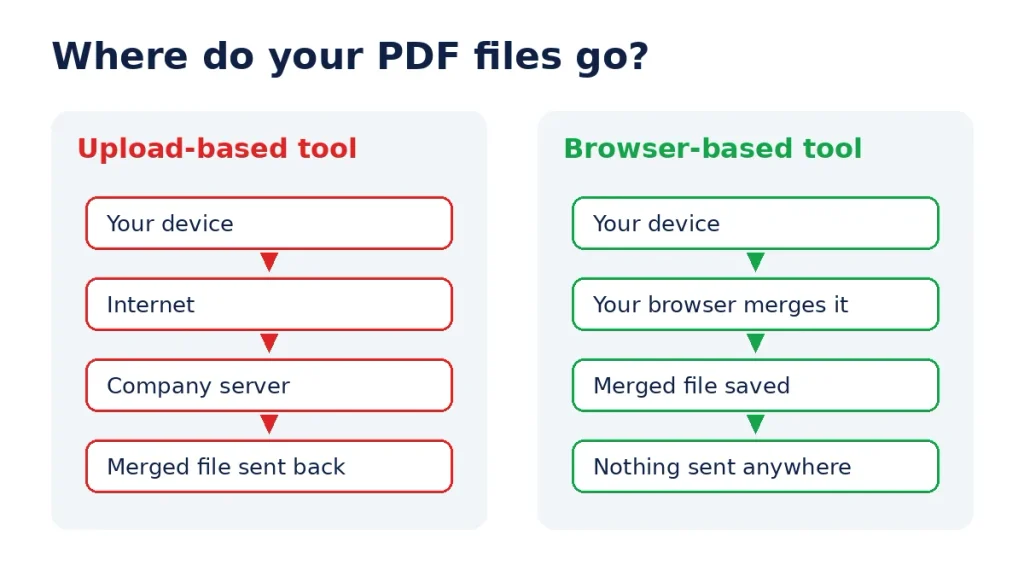
When you use an upload-based PDF tool, your file travels over the internet to a company server, gets processed there and is sent back to you. Most reputable services say they delete files after a few hours. But you have no way to confirm that, and the file has still left your control.
This matters most for documents like:
- Bank and credit card statements
- Passport, Aadhaar, driving licence or other ID scans
- Salary slips, tax returns and invoices
- Contracts, NDAs and legal papers
- Medical reports and insurance claims
- Work files covered by company data rules
A browser-based tool works differently. The page loads the merging code into your browser once, and then your own device does all the work. Your PDFs are read from your disk, combined in memory and saved back to your disk. No file is sent anywhere.
Upload-Based vs Browser-Based PDF Mergers
| Feature | Upload-based merger | Browser-based merger |
|---|---|---|
| Where files are processed | Remote server | Your own device |
| Files leave your device | Yes | No |
| Speed with large files | Depends on upload and download speed | Depends on your device, no upload wait |
| Works on slow internet | Struggles | Yes, once the page has loaded |
| Good for sensitive documents | Risky | Yes |
| Software install needed | No | No |
How to Merge PDFs Without Uploading (Step by Step)
These steps work in Chrome, Edge, Firefox and Safari on Windows, Mac, Linux, Android and iPhone.
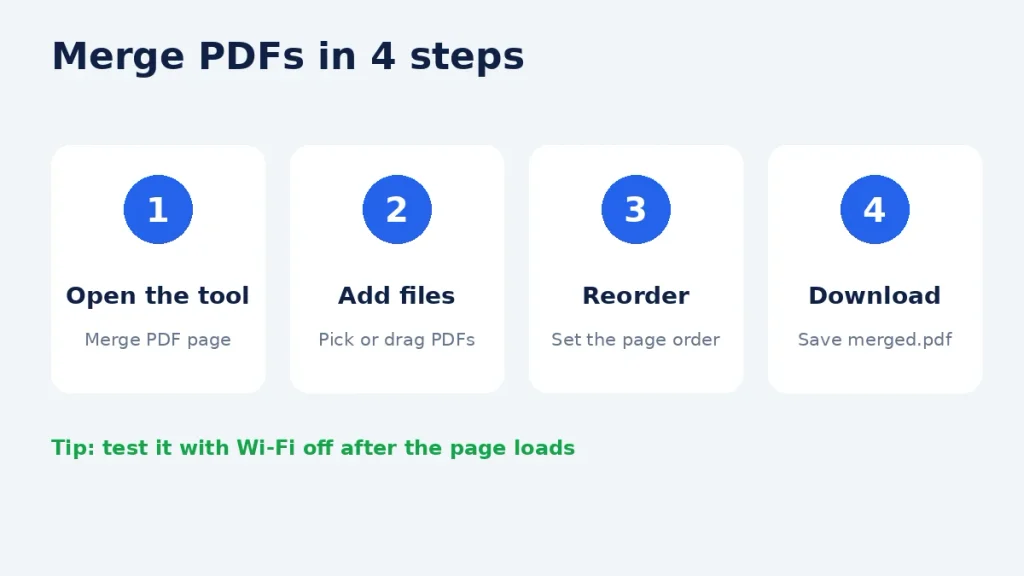
Step 1: Open the Merge PDF tool
Go to the free Merge PDF tool on BookmarkBuild. There is no account to create and nothing to install.
Step 2: Add your PDF files
Click to choose your files or drag them onto the page. You can add two files or many more. On a phone, the file picker lets you choose PDFs from your downloads, Files app or Google Drive (Drive files are copied to your phone first, then merged locally).
Step 3: Put the files in the right order
Arrange the files in the order you want them to appear in the final document. Double check this step, because it is the most common reason people have to redo a merge.
Step 4: Merge and download
Click the merge button and save the new file. Give it a clear name like loan-application-complete.pdf so you can find it later. Your original files stay untouched.
How to Check That a Tool Really Does Not Upload Your Files
Any website can write “no upload” on its page. Here are two simple ways to test the claim yourself, and you can use them on any PDF tool.
Test 1: The Wi-Fi off test (30 seconds)
- Open the PDF tool page and let it load fully.
- Turn off Wi-Fi or mobile data.
- Add your files and merge them.
If the merged file downloads with no internet connection, the work was done on your device. An upload-based tool will show an error or keep spinning.
Test 2: The Network tab test (for desktop users)
- Press F12 (or Cmd + Option + I on Mac) to open Developer Tools.
- Click the Network tab.
- Merge your PDFs and watch the list of requests.
A real browser-based tool shows no large upload request while merging. If you see a request roughly the size of your PDF files going out, the tool is uploading them.
Other Free Ways to Merge PDFs Without Uploading
If you prefer built-in apps, here are offline options for each platform.
| Device | Built-in or free offline option | Notes |
|---|---|---|
| Mac | Preview app | Open the first PDF, show thumbnails, drag the other PDFs into the sidebar, then export. |
| iPhone / iPad | Files app | Select the PDFs, tap the three-dot menu and choose Create PDF. |
| Windows | No built-in merger | Use a browser-based tool or install a free desktop app. |
| Android | No built-in merger on most phones | A browser-based tool in Chrome is the easiest choice. |
| Linux | pdfunite or qpdf (command line) | Example: pdfunite a.pdf b.pdf merged.pdf |
For Windows and Android users, a browser-based merger is the quickest private option because it needs no install and works the same on every device.
Tips for a Clean Merged PDF
- Remove unwanted pages first. Use Delete PDF Pages to drop blank or extra pages before you merge.
- Fix sideways pages. Scanned pages are often rotated. Straighten them with Rotate PDF.
- Turn photos into PDFs. If some of your documents are phone photos, convert them with JPG to PDF, PNG to PDF or the all-in-one Image to PDF tool, then merge.
- Shrink the final file. Many upload forms (job portals, visa sites, bank apps) have size limits. Run the merged file through Compress PDF if it is too big.
- Clean up the file details. Merged PDFs can carry the title or author of the first file. Check and edit this with the PDF Metadata tool.
- Remove passwords first. Password-protected PDFs usually cannot be merged. Open the file with its password and save an unlocked copy before merging.
Need the Opposite? Split or Extract Pages
Sometimes you only need part of a document. Use Split PDF to break a large file into smaller ones, or Extract PDF Pages to pull out just the pages you need. To insert a few pages into an existing file instead of a full merge, try Add PDF Pages. You can find every free tool on the BookmarkBuild tools page.
Frequently Asked Questions
Can I merge PDFs without uploading them?
Yes. Browser-based tools like the BookmarkBuild Merge PDF tool combine files on your own device using JavaScript, so nothing is sent to a server. Mac and iPhone users can also use the built-in Preview and Files apps.
Is it safe to merge PDFs online?
It depends on the tool. Upload-based tools send your files to a server, which is a risk for sensitive documents. Browser-based tools are much safer because your files stay on your device. Use the Wi-Fi off test to check any tool.
How do I merge PDF files on Windows for free?
Windows has no built-in PDF merger. The easiest free option is to open a browser-based merge tool in Chrome or Edge, add your PDFs, set the order and download the merged file. No install is needed.
Can I merge PDFs on my phone without an app?
Yes. Open a browser-based merge tool in Chrome or Safari on your phone, pick your PDFs from your files, arrange them and download the result. iPhone users can also use the Files app’s Create PDF option.
Does merging PDFs reduce quality?
No. Merging only joins the pages together. Text, images and links stay the same as in the original files. Quality only changes if you also compress the file.
Why can’t I merge a password-protected PDF?
Encrypted PDFs block tools from reading their pages. Open the file with its password, save or print an unlocked copy, then merge that copy.
Is there a limit on how many PDFs I can merge?
Browser-based tools are limited by your device’s memory rather than a server limit. Most computers handle dozens of files easily. Very large files with hundreds of pages may be slow on older phones.
Conclusion
You do not need to hand your private documents to a stranger’s server just to join two PDFs. A browser-based merger does the job for free, keeps your files on your device and works on any phone or computer. Try the free Merge PDF tool now, and run the Wi-Fi off test if you want proof that your files stay with you.